
Help
How can we help?
Search for your question or pick your role. The app is in Spanish for now, so button and screen names appear as they do on screen, with a translation.
1 · For everyone
Getting started
How is Kuro organized?
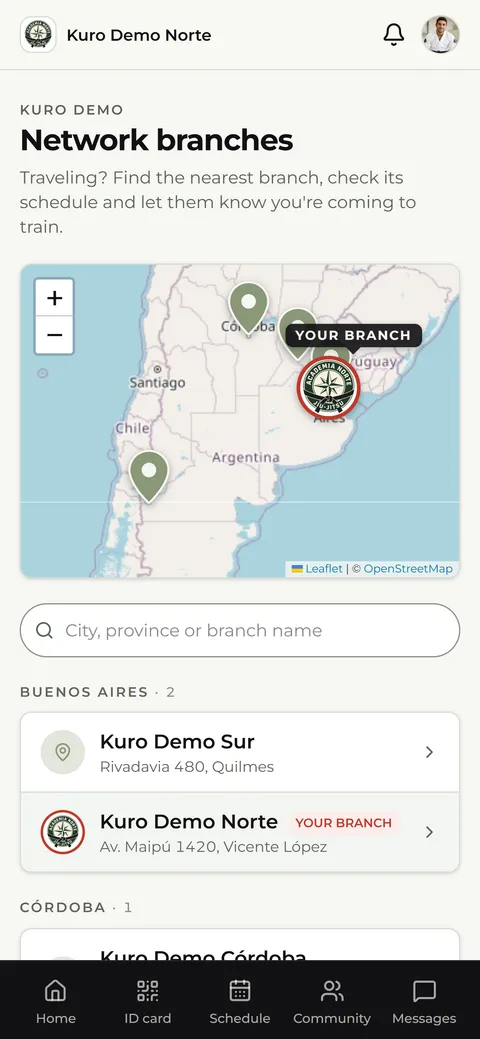
Kuro works on three levels. The academy is the whole network, for example all the locations of one brand. A location is each place where people train, with its manager, instructors, students, classes, door QR and store. A region is a group of locations looked after by a regional coordinator.
What does each role see?
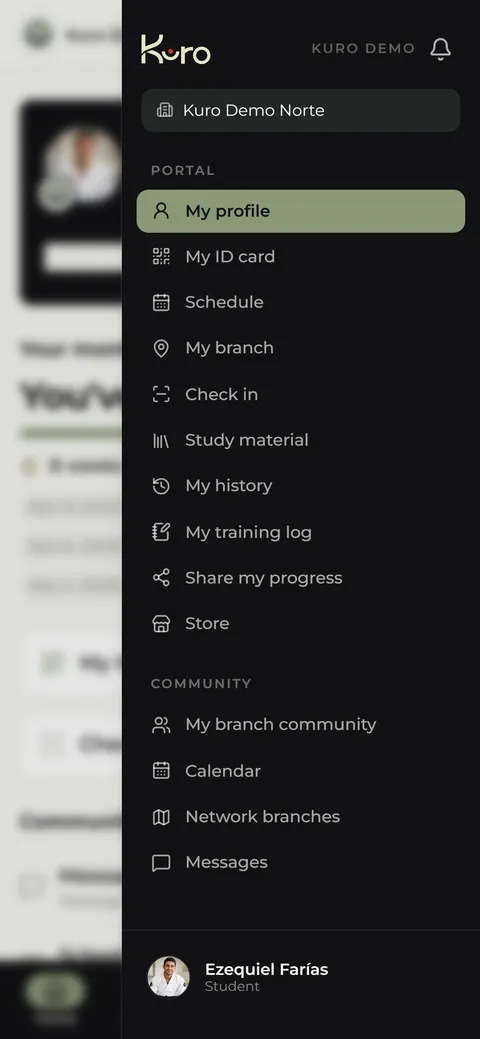
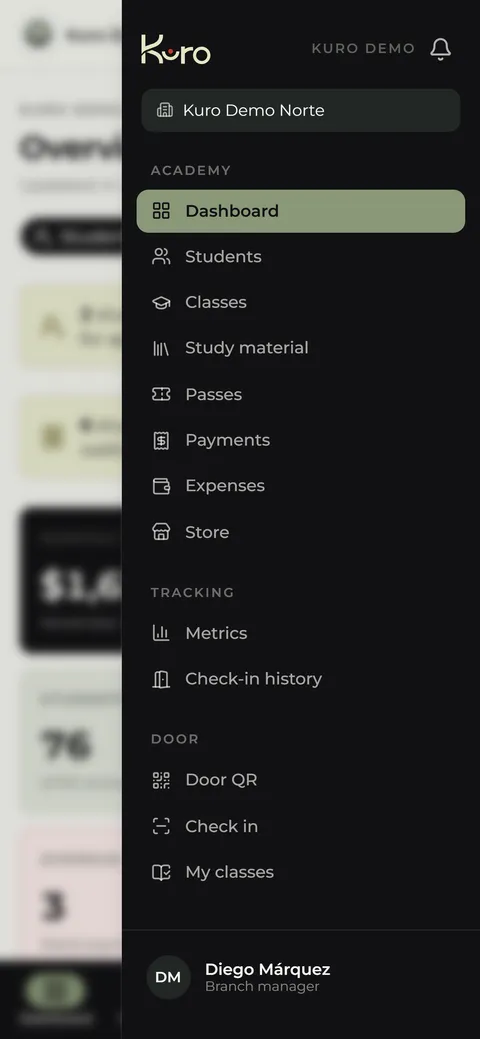
Each person sees only what applies to them. One person can have more than one role under a single account.
| Role | What they do | What they don't see |
|---|---|---|
| Mestre | Leads the whole network: locations, regions, team, black belt fees and the official store | Students' payments |
| Regional coordinator | Looks after the locations in their region and can edit them | Money or pending sign-ups |
| Location manager | Runs their location from start to finish | Other locations, except the directory |
| Instructor | Teaches classes and handles the door | Money; doesn't approve sign-ups or collect payments |
| Student | Uses their ID card, schedule and history | Other students' data |
Only the manager of each location sees the money, and only they approve sign-ups. If something doesn't show up on your screen, it is almost always because your role doesn't see it, not because something is broken.
What does each status mean?
| Status | What it means |
|---|---|
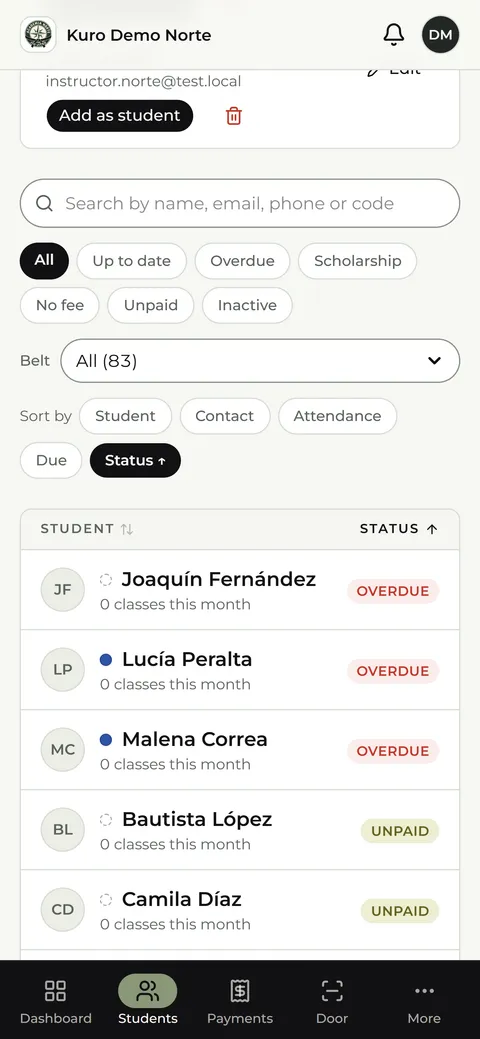
| Al día (Up to date) | Dues are current and the door lets them in |
| Vencido (Overdue) | Past their due date; the door turns them away until they pay |
| Sin pago (No payment) | Added, but hasn't registered any payment yet |
| Becado (Scholarship) | Comes in with no dues and no due date |
| Sin cuota (No dues) | Enrolled only in classes that aren't charged: always allowed in, never overdue |
| Pendiente (Pending) | Signed up and waiting for the manager to approve; the door turns them away |
| Inactivo (Inactive) | Withdrawn: can't come in and doesn't appear in the lists, but keeps their history |
How do I sign up?
Nobody signs up from scratch on their own: each location has its own link, and everything starts there.
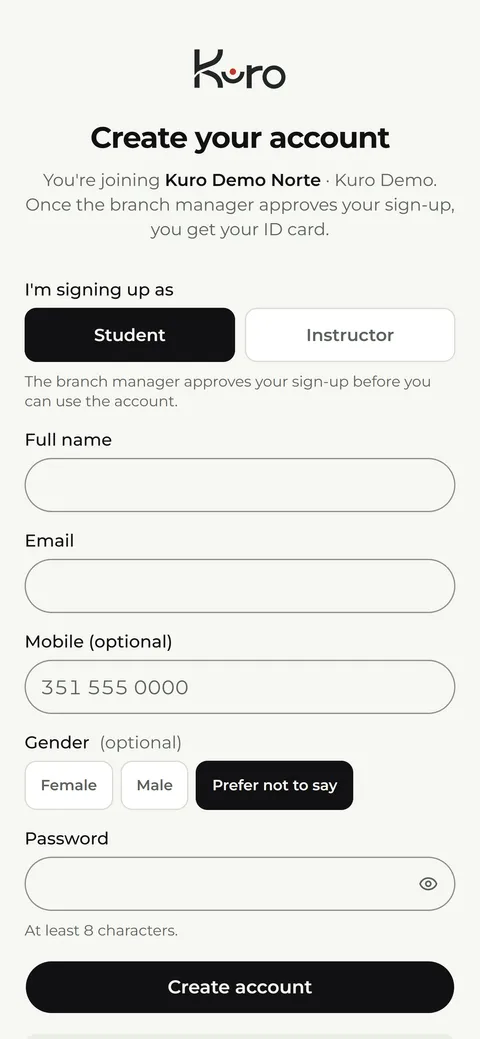
- Open the sign-up link your location gave you.
- Choose how you sign up: as a student or as an instructor.
- Fill in your name, email, mobile (optional), gender (optional) and a password of at least eight characters. You can also sign up with Google.
- Check your email and tap the link to confirm the account.
- Your sign-up stays pending until the location manager approves it. Meanwhile you can log in and see your profile, but the door doesn't recognize you yet.
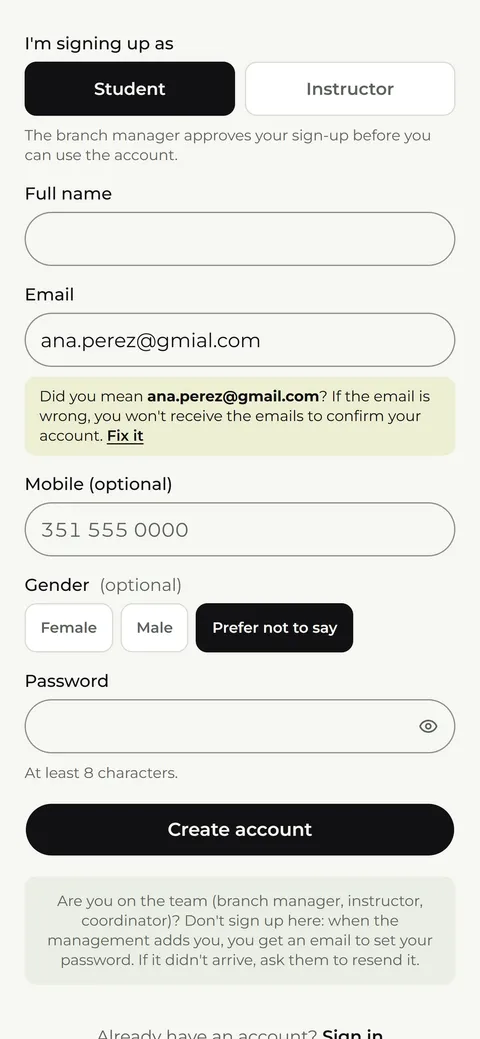
Double-check your email. If you get the domain wrong, for example gmail.com.ar instead of gmail.com, the account is created but you will never receive the emails. Kuro warns you when the domain looks misspelled.
How do I log in? What if I forgot my password?
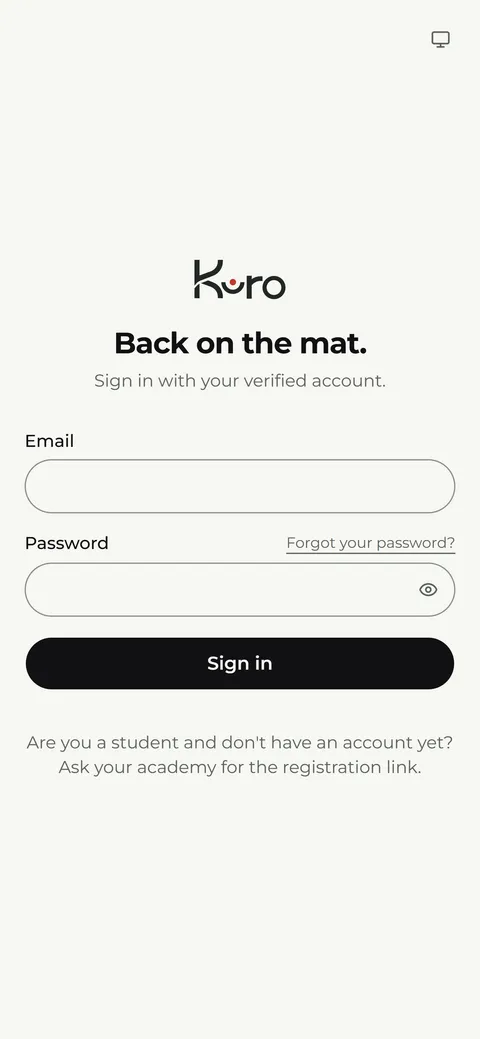
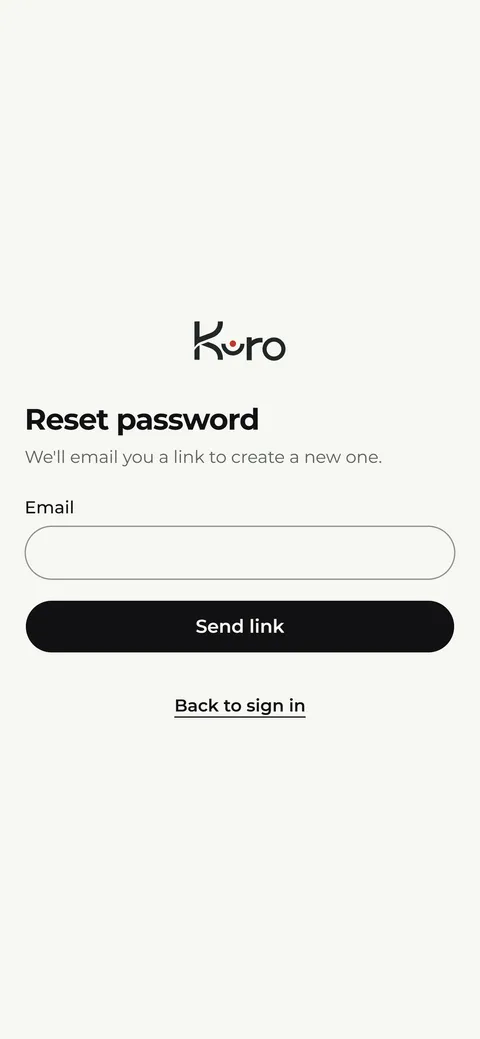
On the start screen you log in with your email and password. If you forgot it, tap ¿Olvidaste tu contraseña? (Forgot your password?) and you'll get an email to choose a new one. If the email doesn't show up, check spam or promotions and make sure you typed the address correctly.
I have more than one role
If, for example, you train and also teach, you'll see Trabajar como (Work as) at the top left. Pick the role you want to work with and the whole app changes: the menu, the permissions and what you see. It is always the same account, with the same email and password.
How do I install Kuro on my phone?
Kuro works in the browser and installs on your home screen, without going through an app store. That way your ID card is one tap away. Do it after logging in for the first time, so the app is ready to use.
On iPhone, open app.kuro.academy in the browser you use:
- Safari: tap the three dots at the bottom right and then Share. Look for the option See more and tap Add to Home Screen (Agregar a inicio). Leave Open as web app turned on and tap Add.
- Chrome: tap the square-with-an-arrow icon at the top right. Look for the option See more and tap Add to Home Screen (Añadir a pantalla de inicio). Leave Open as web app turned on and tap Add.
On Android, open app.kuro.academy in Chrome, tap the three-dot menu and choose Install app or Add to Home screen.
2
If you are a student
How do I get into class?
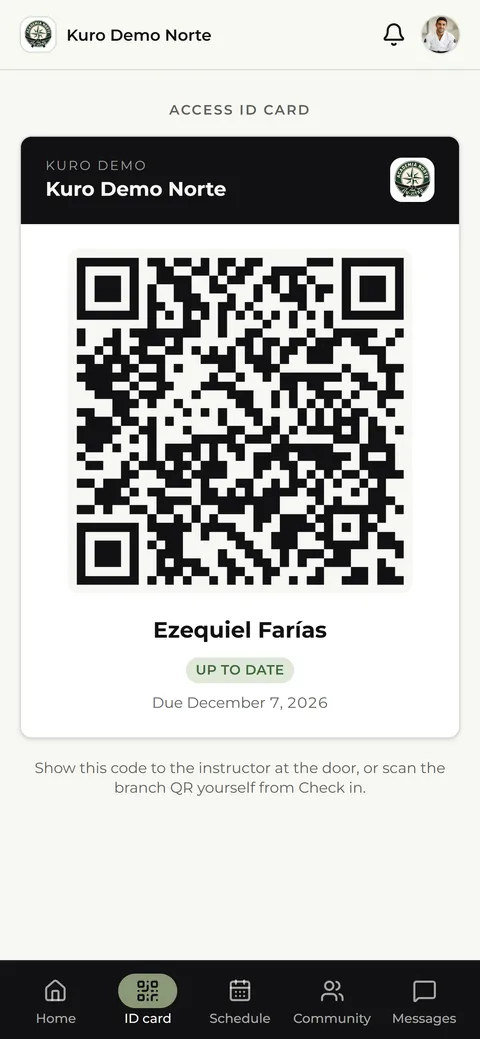
Two ways. With Mi carnet (My ID card): show your personal QR to the instructor or the manager at the door. Or with Validar acceso (Check in): scan the QR on the door poster with your camera and Kuro records your entry. Both work as long as your dues are up to date and your sign-up is approved.
For Kuro, a class is in progress from 30 minutes before it starts until 15 minutes after it ends. If your location has it turned on, when you scan the QR you get a dropdown, ¿A qué clase venís? (Which class are you here for?), with the classes happening at that moment: you pick one and only then is your entry recorded. If you were already checked in to a class, it isn't offered again, and if you are already checked in to all of them, or you scan a second time, you see Ya estabas anotado (You were already checked in) and no extra entry is added.
Why won't the door let me in?
Kuro shows the reason on screen. The most common ones: your dues are overdue, your sign-up is still pending approval, you've been withdrawn, or you're at another location without an accepted visit. If your location doesn't allow entries outside class hours, you are also turned away when you have no class of yours in progress. In every case your location manager sorts it out: talk to them.
How do I see the schedule? How do I join another class?
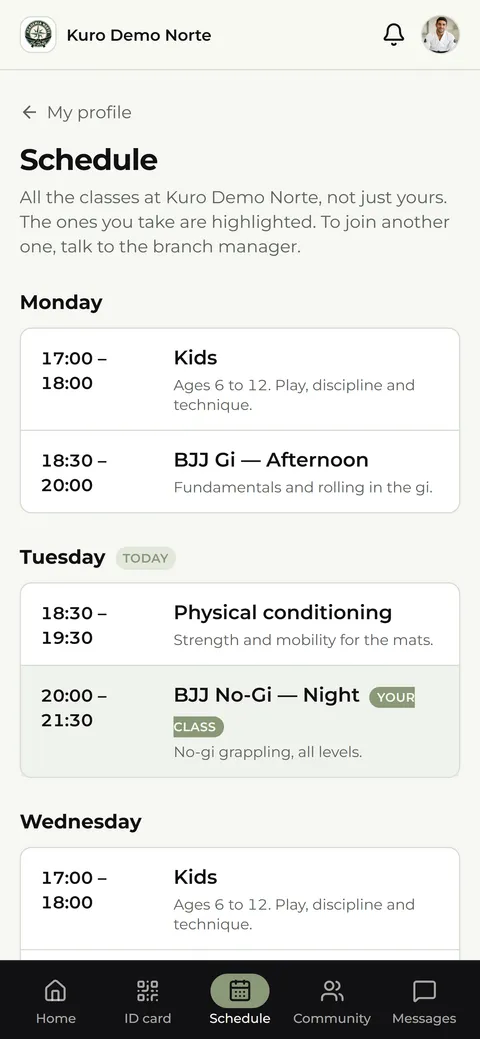
Horarios (Schedule) lists every class at your location, ordered by day, with its instructor and description. The ones you take are tagged Tu clase (Your class). Below you also see upcoming seminars. If a class has several time slots, for example Tuesday and Thursday plus a Saturday, you see them all together under the same class. It is a screen for looking things up: to join another class, talk to the manager.
How do I sign up for a seminar?
Seminars appear in Horarios (Schedule), below the classes, with their date and number of spots. They are paid like your dues: cash or bank transfer, reporting the payment with the receipt, and the manager confirms it.
How are my dues set up and where do I pay them?
It depends on how your location charges: per class, or per pass plus the classes charged separately, such as kids' classes. In special cases the manager can set a fixed amount for you. You pay at the location, in cash or by transfer, and the manager records it in Kuro. In Mi perfil (My profile) you see your dues status and when they expire; if they're about to expire, you get a notice.
How do I choose or change my pass?
If your location charges per pass, for example “2 or 3 a week” or “open pass”, at the top of your profile you'll see Elegí tu pase (Choose your pass) with the options and their prices. Pick one and the manager approves it. Until then your dues don't change. Afterwards you can ask for another one whenever you like.
What are the weekly goal and the streak?
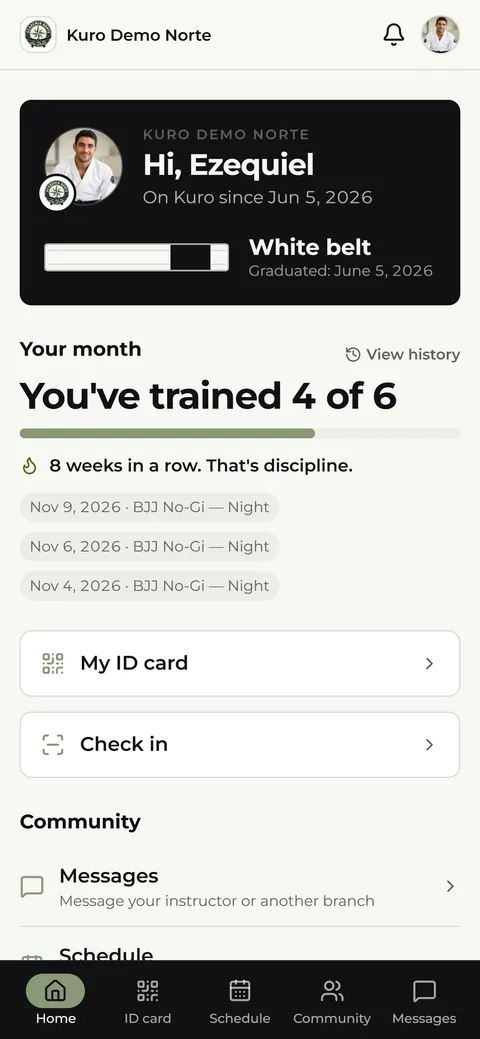
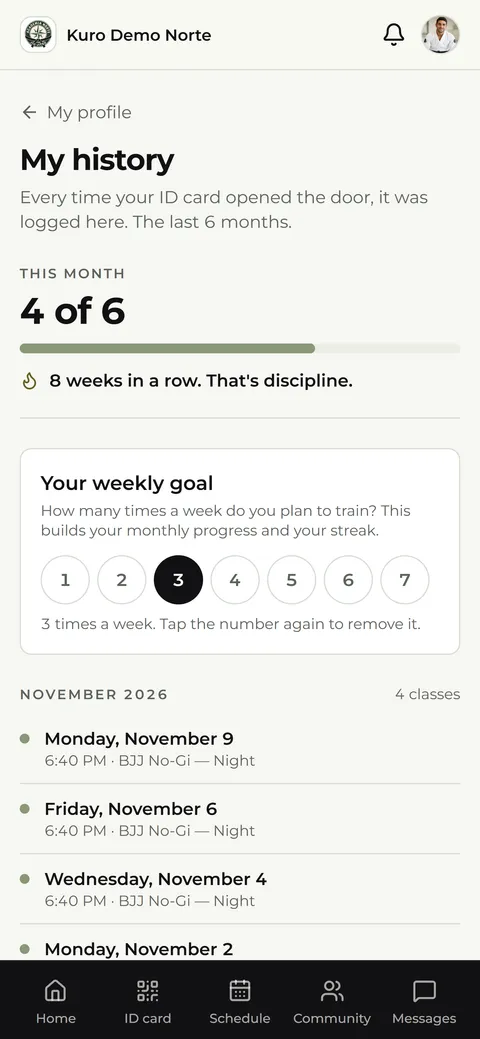
In Mi perfil (My profile) you set how many times a week you want to train, from one to seven. Kuro shows how many classes you've done this month and your streak of weeks meeting the goal.
My history and my training log
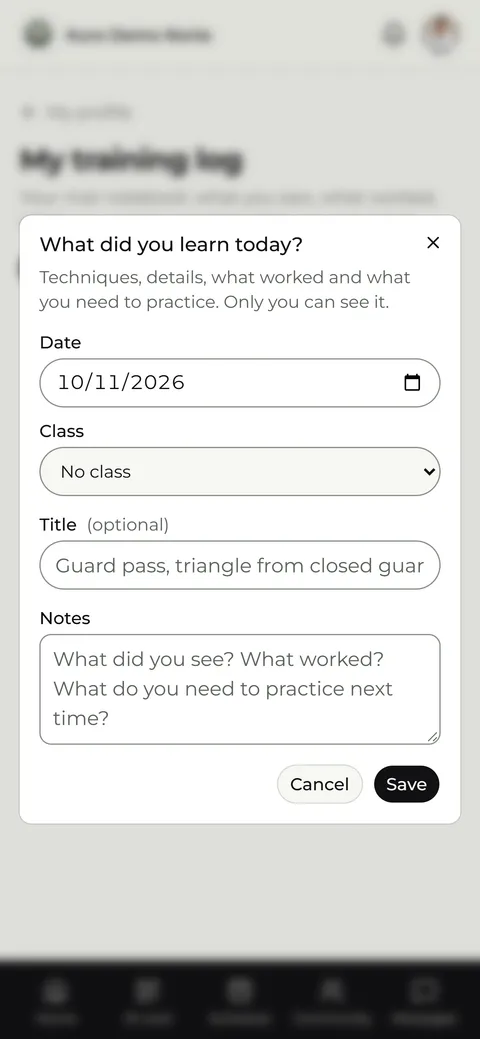
Mi historial (My history) keeps every time you came in, grouped by month. Mi bitácora (My training log) is a private notebook where you write down what you covered in class and what you need to practice: only you can see it.
How do I buy from the store?
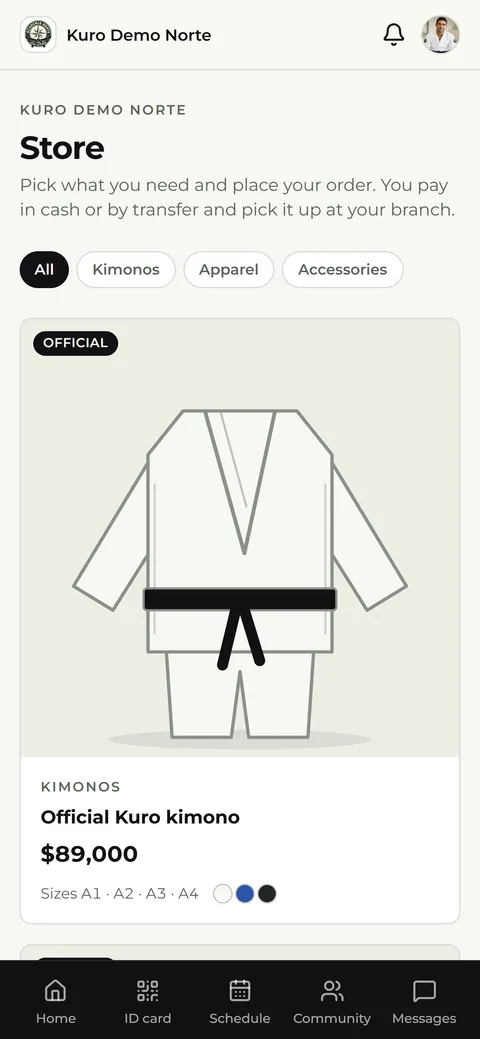
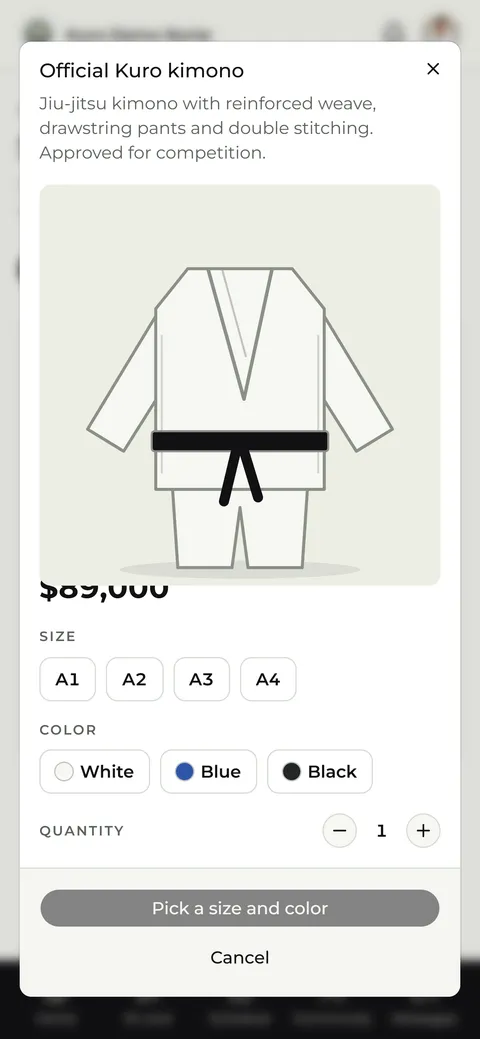
In Tienda (Store) you'll find the academy's official store and your location's products. Pick size and color, build your order and confirm it. Payment is in cash or by transfer, directly with your location, which hands it over to you. You can see your orders and cancel the ones you haven't paid yet.
I'm going to train at another location
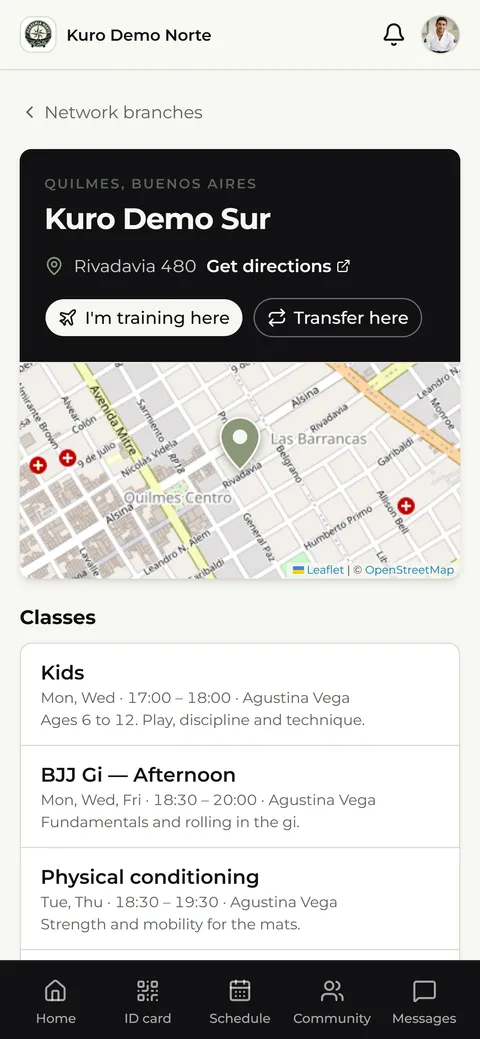
Go to Sedes de la red (Network locations), pick the location and tap Voy a entrenar acá (I'm training here). Choose the day and your profile reaches that location's manager. If they accept, your ID card opens their door that day.
I'm moving to another location
From Sedes de la red (Network locations), open your new location and tap Trasladarme acá (Transfer me here). The manager of that location approves it. You keep your account, your belt and your history; classes and dues start from zero at the new location.
How do I message my instructor or another location?
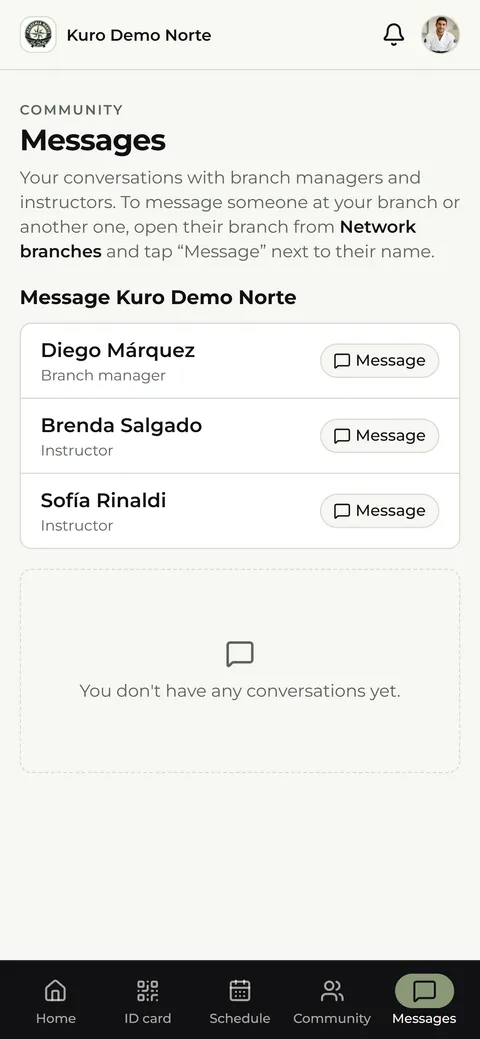
In Mensajes (Messages), your location's team is at the top, with a button to write to each person. To write to someone at another location, open that location in Sedes de la red (Network locations) and tap Escribir (Write). When the team writes to you, the conversation shows up by itself.
Why can't I see an event a classmate saw?
An event can be meant only for one activity or for certain belts, for example a Jiu Jitsu seminar or a black belt exam. If it isn't for you, you don't see it in Calendario (Calendar), you can't tap Voy (I'm going) and you don't get the email notice. If you think it should be for you, talk to your location manager: your class, your pass or your belt may not be recorded.
3
If you are an instructor
How do I check people in at the door?
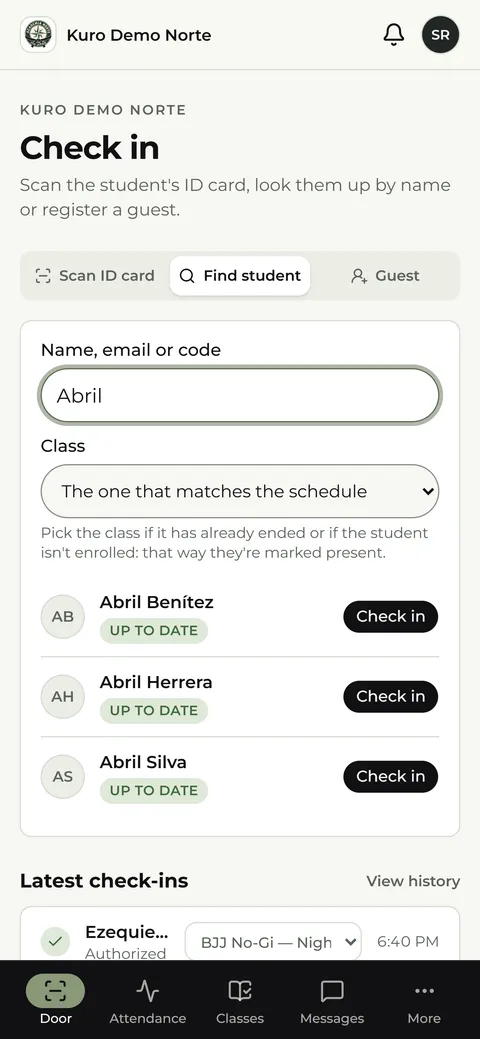
In Validar acceso (Check in) you scan the student's ID card with the camera, look them up by name or add a guest with their name, email (optional) and the day of the class. Kuro says on screen whether they get in or why not: overdue dues, pending sign-up, withdrawn or another location. If your location turned on Los instructores no toman asistencia (Instructors don't take attendance), you don't see Validar acceso and can't record entries.
Who came today?
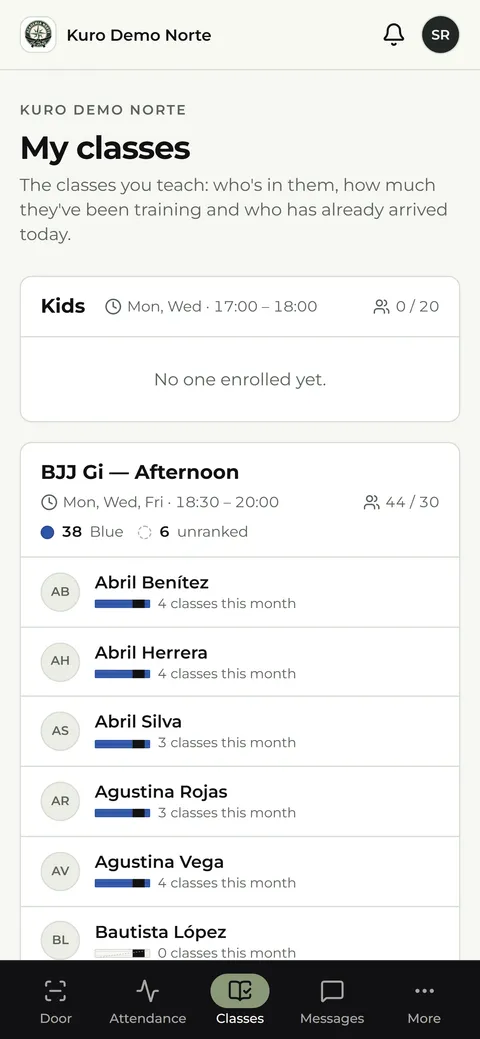
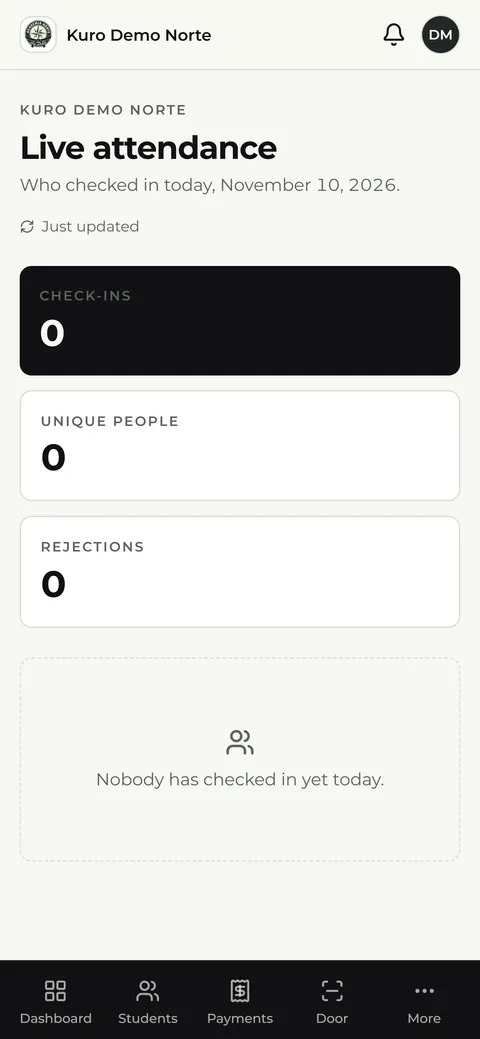
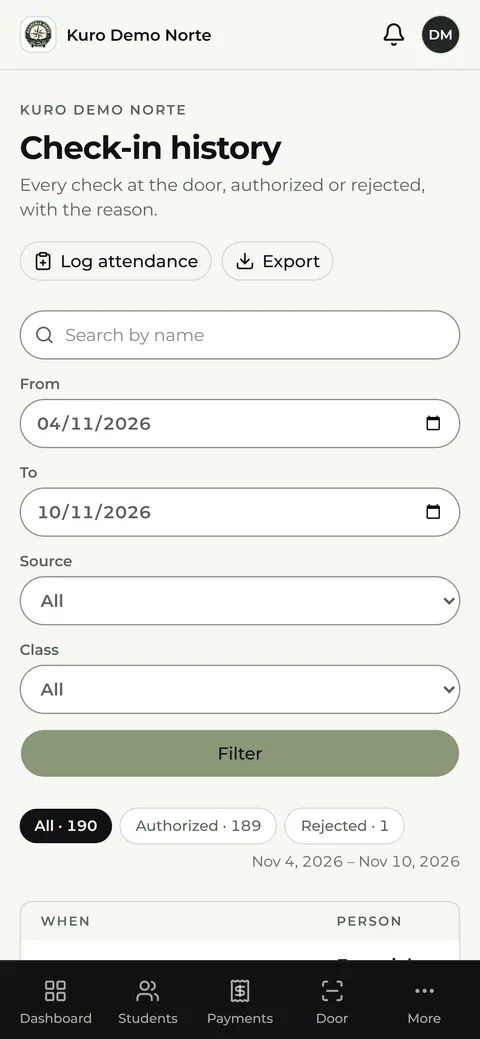
Asistencia en vivo (Live attendance) shows who came in today and updates by itself. Mis clases (My classes) gathers the ones you teach, with their enrolled students, how much each one has been training and who has already arrived today. The Historial de accesos (Access history) lists every door check with its result and reason.
How do I log a belt promotion?
In Alumnos (Students) open the student's page and log the promotion, that is, the belt change. The student list is read-only: you can't edit other data.
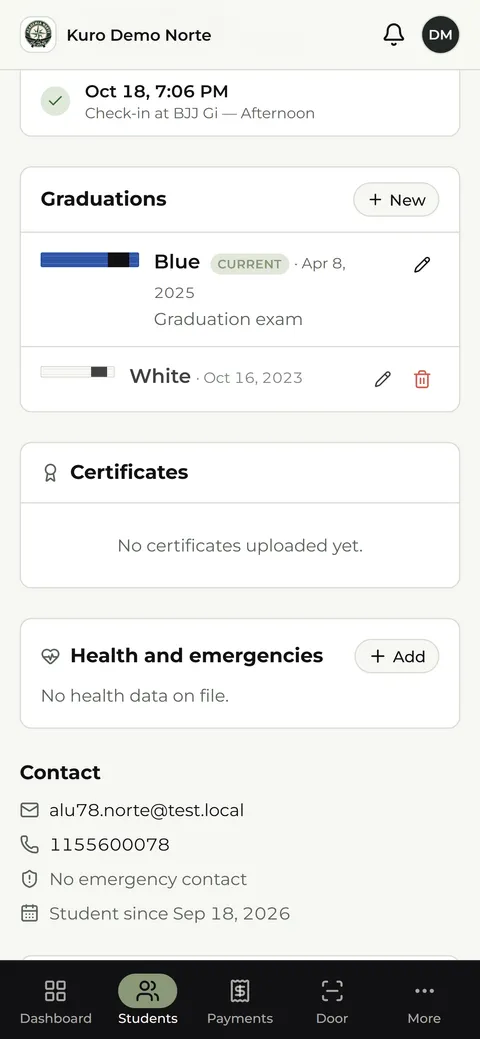
What can't I do as an instructor?
You don't see money, you don't approve sign-ups and you don't collect payments. You can see who is pending approval, but the location manager approves them. If you also train, the manager can give you the student role and you switch between the two with Trabajar como (Work as). And if your location turned on Los instructores no toman asistencia (Instructors don't take attendance), you can't record entries either.
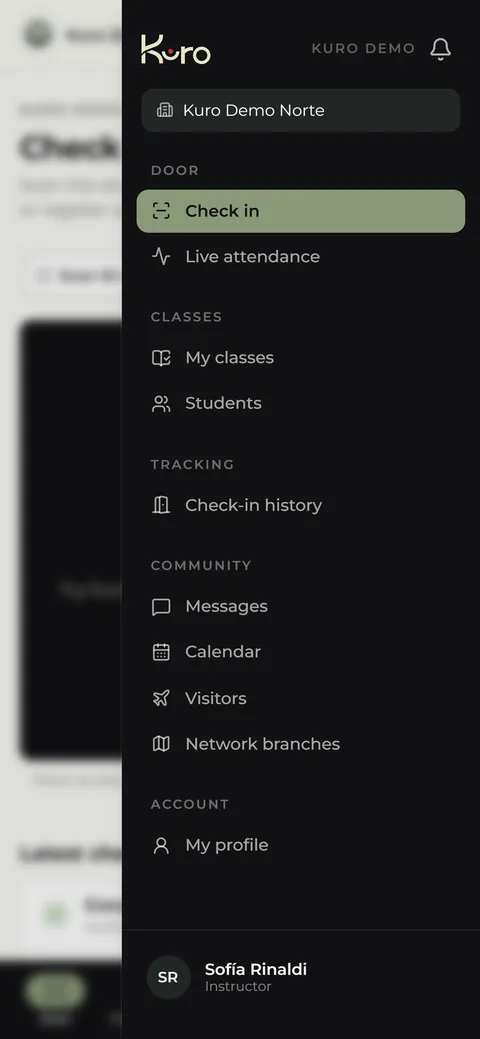
Messages and visits
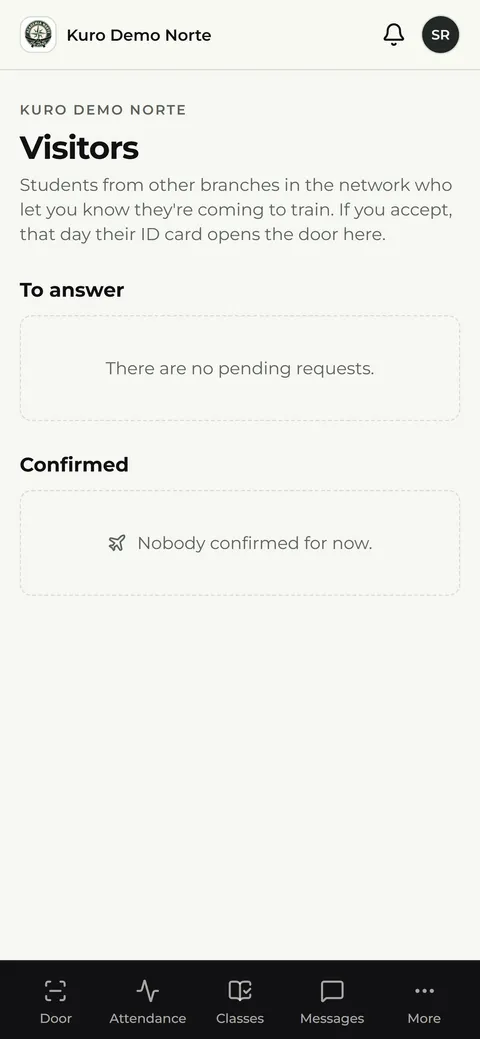
In Mensajes (Messages) students write to you and you can write to them, with Nuevo mensaje (New message) or Escribirle (Write to them) from their page. Visitas (Visits) shows students from other locations who have let you know they're coming: you can approve them and let in a visitor who was turned away at the door, unless the location turned on Los instructores no toman asistencia (Instructors don't take attendance).
4
If you are a location manager
You run the location and you are the only role that sees the money. The questions follow the order of the eight parts of the menu.
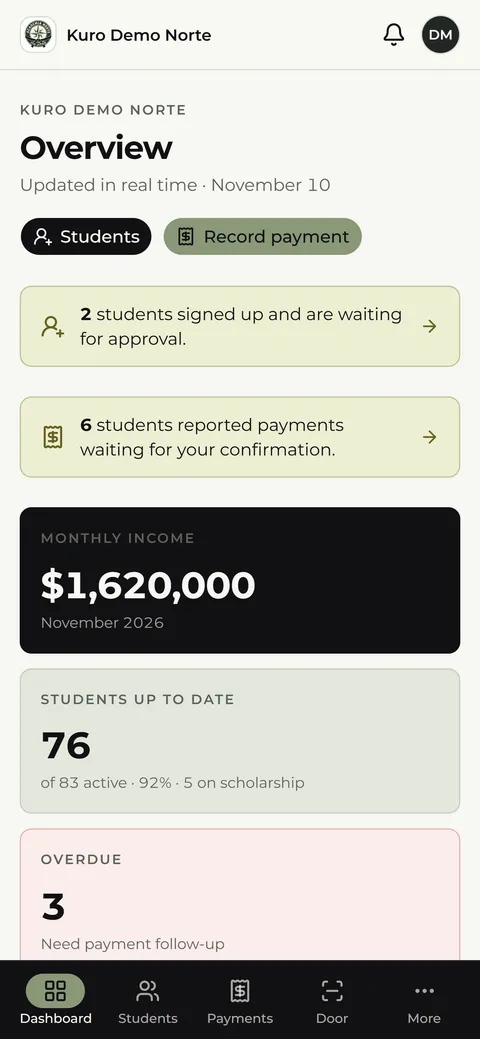
What does the Dashboard show?
The quick view of the day: income for the month, students up to date, overdue, active, today's entries and pending sign-ups. Each number takes you to the matching list. The bell at the top takes you to Avisos (Notices), which gathers in one place what is waiting for your answer: unread messages, sign-ups to approve, payments to confirm, overdue students and students who have reached the attendance count for their next belt promotion.
What can I do from a student's page?
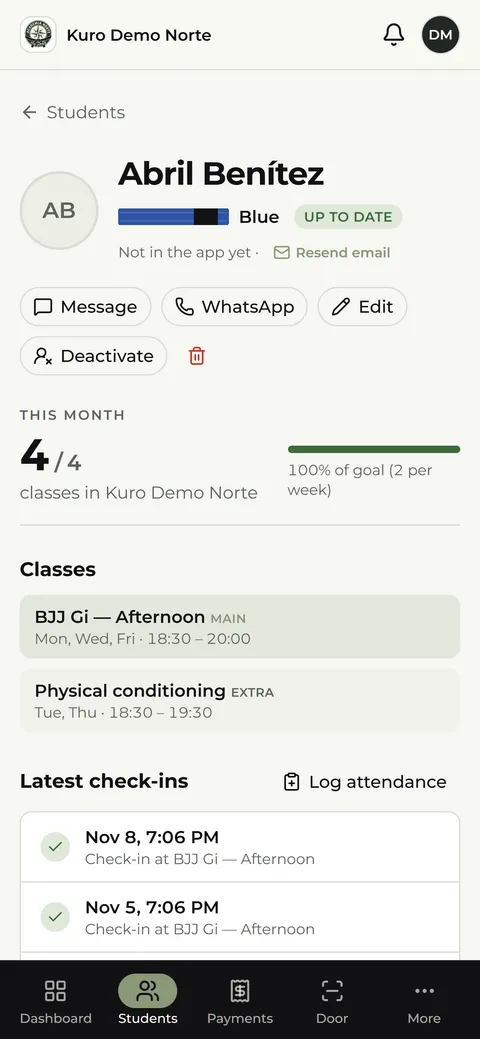
Search by name, email, phone or code, and filter by status. On the student's page you see their classes, dues, payments, belt promotions, latest entries and contact. From there you can edit their details, role, scholarship status, classes, pass and a custom fee; log an attendance; message them or send a WhatsApp; and also activate them as an instructor. If a promotion was logged by mistake, you can delete the student's current promotion.
Withdraw or delete?
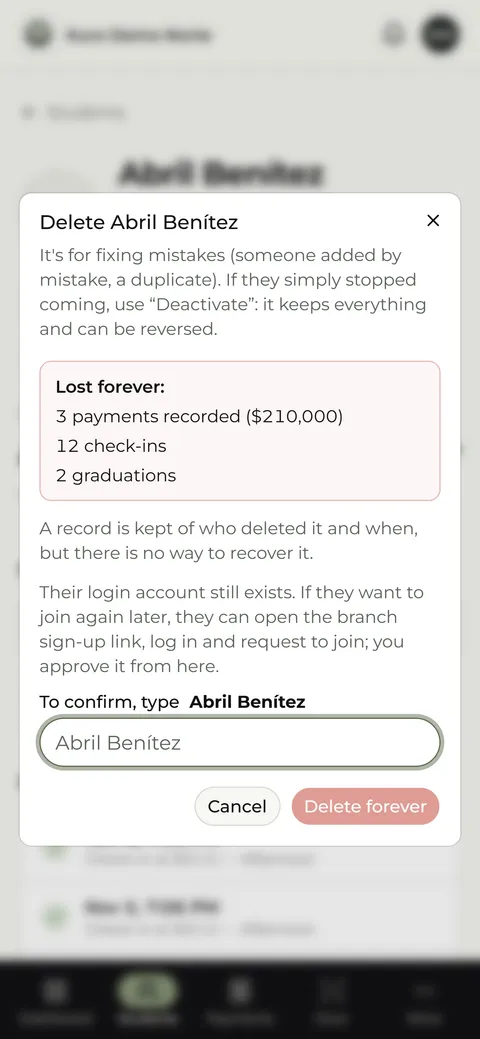
Dar de baja (Withdraw) is for someone who stopped coming: they become inactive without losing anything and can be reactivated. Eliminar (Delete), with the trash can, is only for fixing mistakes such as a duplicate student: it asks you to type the name, shows what is lost (payments, attendance, belt promotions) and can't be undone.
How do I add a student manually?
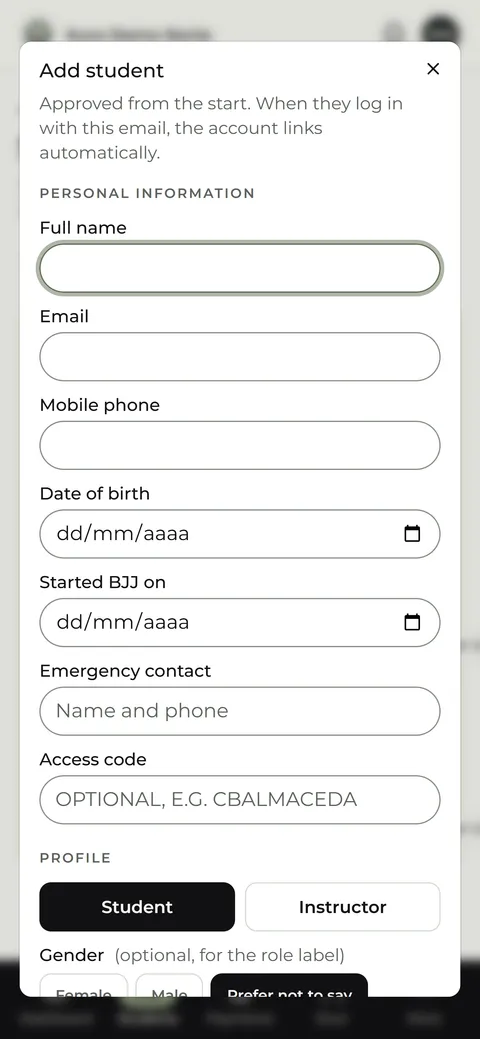
With Cargar alumno (Add student) you fill in their details, pick their classes and they're approved right away. If the person already has an account, they log in with it as usual; if not, they get an email to set their password. If that email already belongs to a student at another location in the network, Kuro tells you and offers Traer a esta sede (Bring to this location).
How does the sign-up link work?
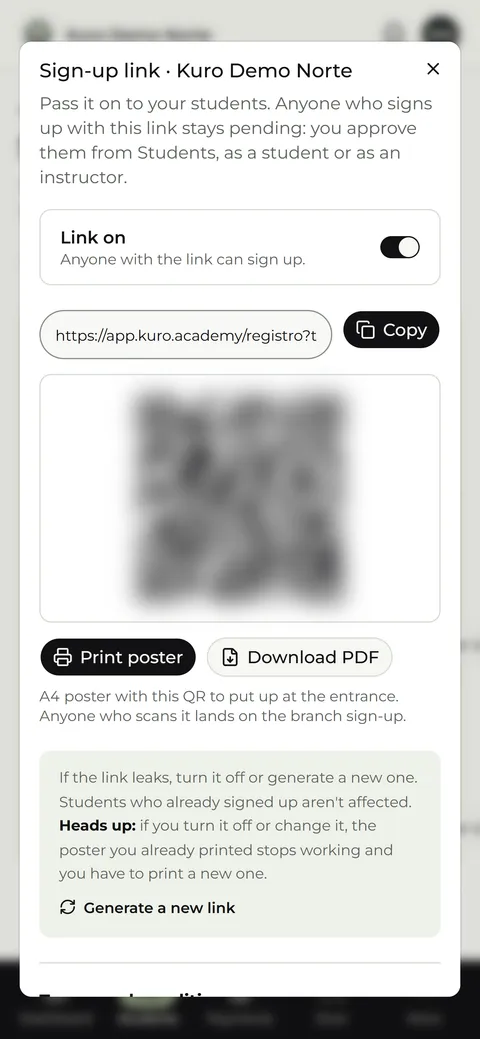
The Link de registro (Sign-up link) button shows your location's link and its QR, with a switch to turn it on or off. It starts off. If the link leaks, Generar un link nuevo (Generate a new link) makes the old one stop working.
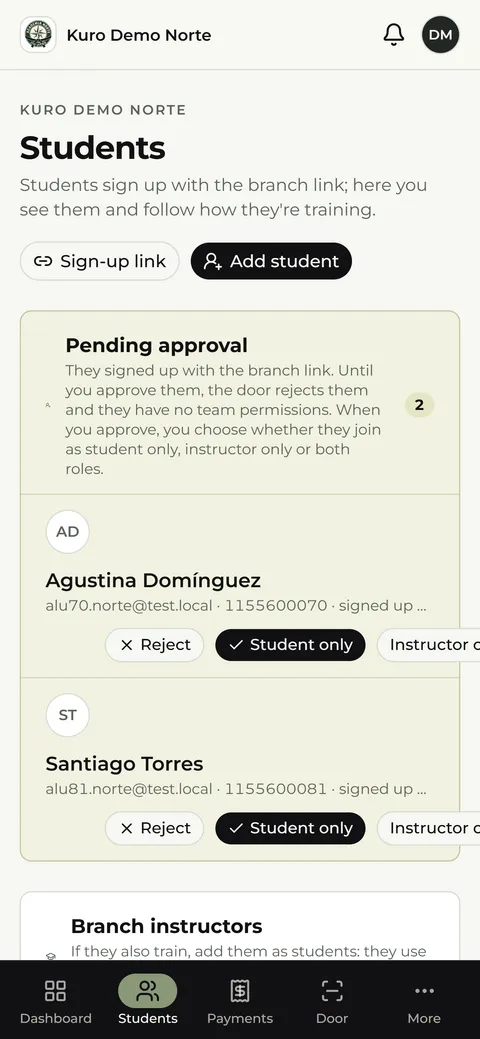
How do I approve sign-ups and requests?
Everyone who signs up through the link lands in Pendientes de aprobación (Pending approval). You choose to approve them as a student, as an instructor or both, or reject them; what the person asked for is highlighted. Above the list you also see transfer requests (when you accept them, the previous location gets a notice) and pass requests (the dues change when you approve them).
How do I create or change a class?
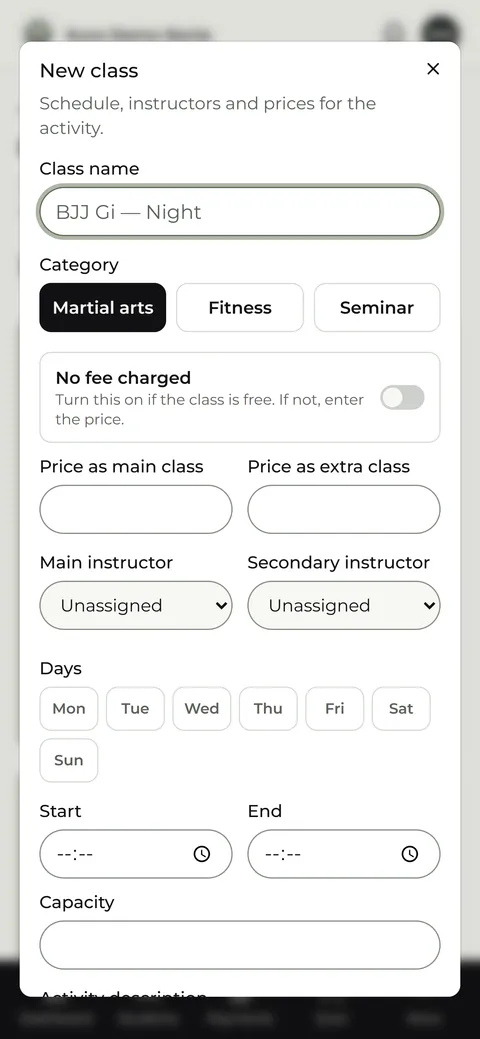
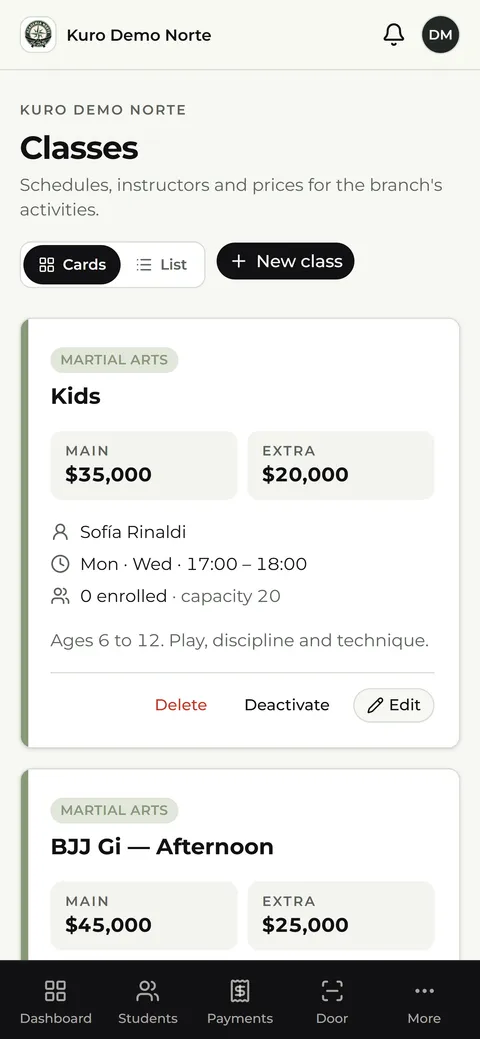
In Clases (Classes), Nueva clase (New class) asks for the name and category (martial arts, fitness or seminar); the price, or “Se cobra aparte” (Charged separately) if the location charges per pass; the main and secondary instructor; the days, time and capacity; and a description students see in Horarios (Schedule). If the class is free, turn on No se cobra cuota (No dues): it has no price and adds nothing to anyone's dues.
If a class meets on more than one day or at different times, for example Tuesday and Thursday at 20:00 plus Saturday at 11:00, you don't need to create two: tap Agregar otro horario (Add another time slot) and everything stays in the same class, with one price, one instructor, one set of enrolled students and one attendance record. The time slots show up combined in Clases (Classes), in Mis clases (My classes), in the student's Horarios (Schedule) and on the location's page, and the door recognizes the class at any of them.
Each class can be edited, deactivated (hidden without being lost) or deleted (its enrollments go with it). Students see the changes instantly.
How do I organize a seminar?
Create it as a new class with the Seminario (Seminar) category: set the date, number of spots and price. Payment works like dues: the student pays in cash or by transfer with a receipt, and you accept the payment. Kuro doesn't charge online.
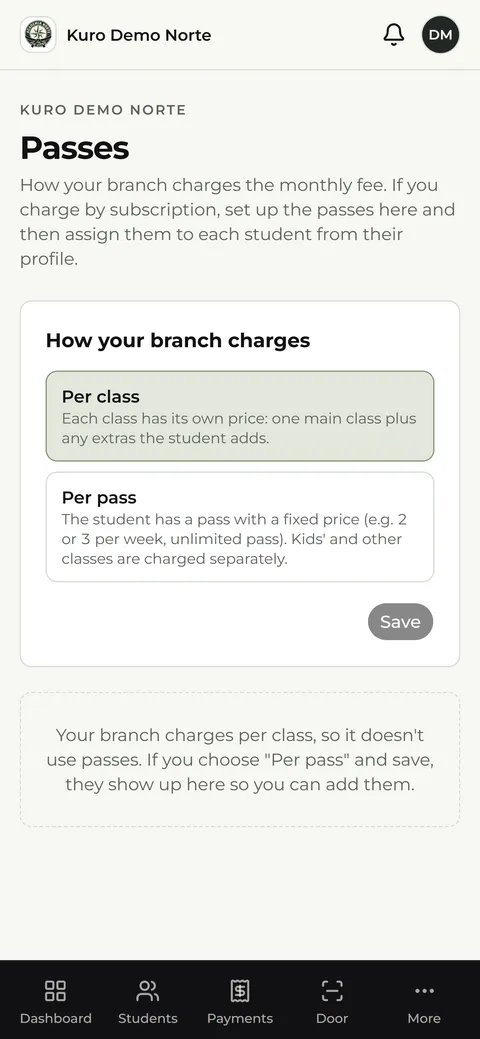
How do I set up dues and passes?
In Pases (Passes) you choose one of two modes. Per class: the dues are the price of the main class plus each additional one. Per pass: you build a list of passes with a name, price and classes per week; the dues are the pass plus the classes charged separately. In per-pass mode you can turn on Avisar si se pasa del pase (Warn if they exceed the pass).
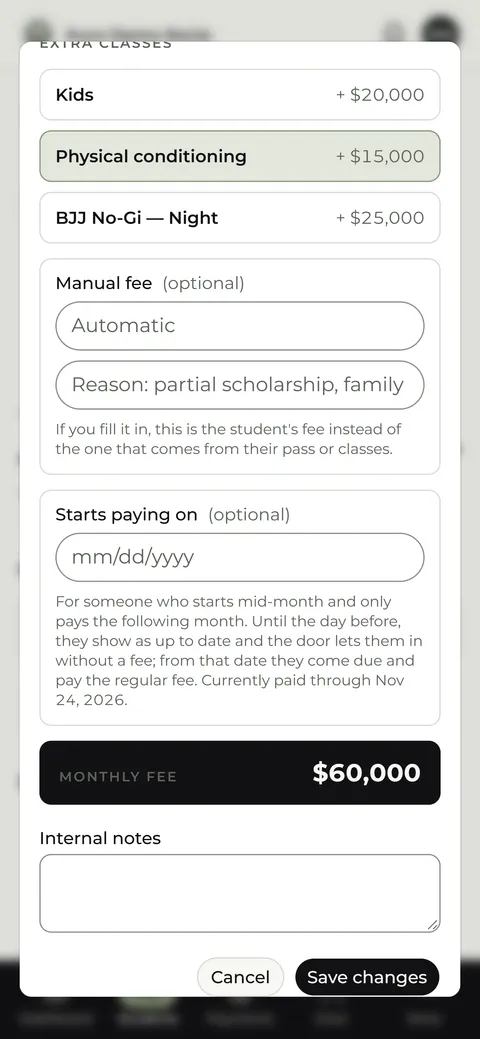
For a partial scholarship or a family discount, use Cuota a mano (Custom fee) on the student's page, with the amount and the reason.
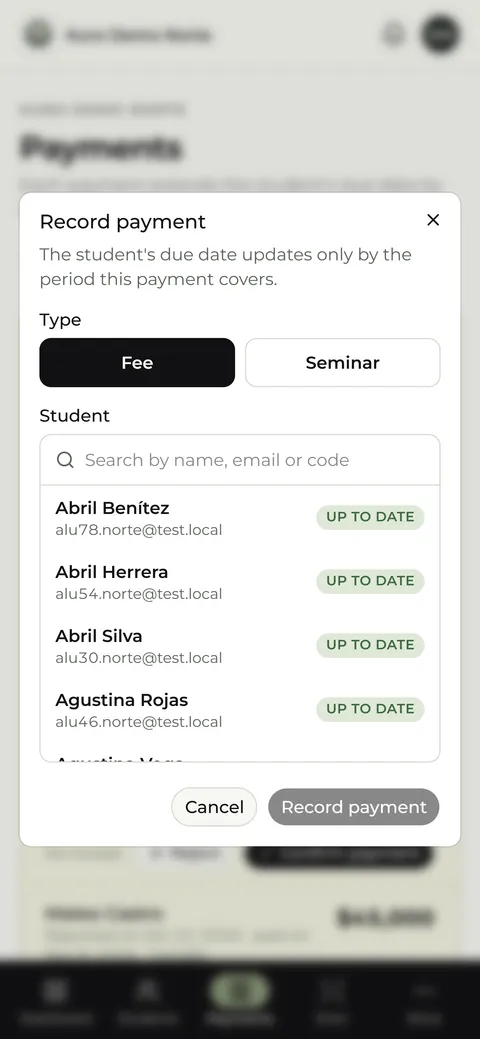
How do I record a payment?
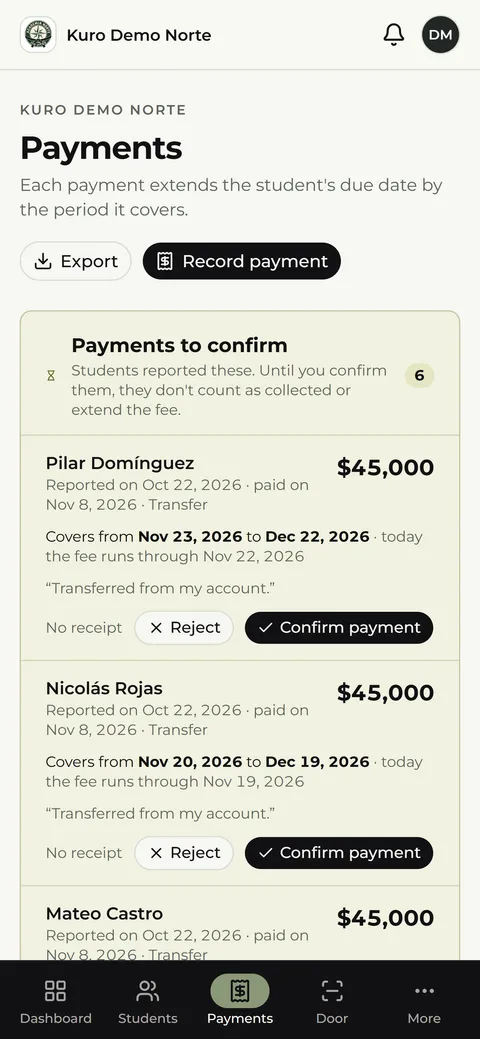
In Pagos (Payments) you choose the student. Kuro suggests the amount of their dues and, if they're overdue, adds the late fee, which you can remove. You choose cash or transfer and the payment is recorded with the period it covers: the due date moves forward by itself. The month's list can be filtered and exported. If you recorded something wrong, tap the pencil on the payment: you can fix the amount, method, date, notes, the period it covers and the late fee without cancelling it. Kuro records who edited it and when, and the due date is recalculated.
How do I log expenses and see what's left?
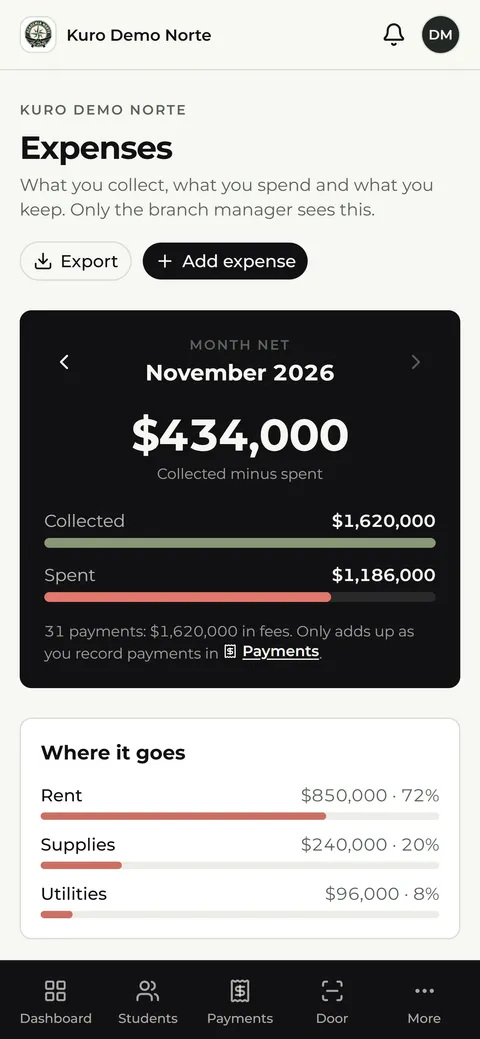
In Gastos (Expenses), under the Academia menu, you log what the location spent: Cargar gasto (Add expense) asks what it was, the amount, the date, the category (rent, utilities, salaries and instructors, supplies, maintenance, taxes, advertising or other) and, if you want, a note. Each expense can be corrected or deleted.
At the top you see the month's net: what came in minus what went out. What came in is only the payments you recorded in Pagos (Payments), so it grows as you collect. Below, En qué se va (Where it goes) splits the month's expenses by category and Mes a mes (Month by month) compares the last six months: tap one to open it. Exportar (Export) downloads the month as a spreadsheet for Excel.
Only the location manager sees it: the mestre, the coordinators and the instructors have no access.
How does the door work?
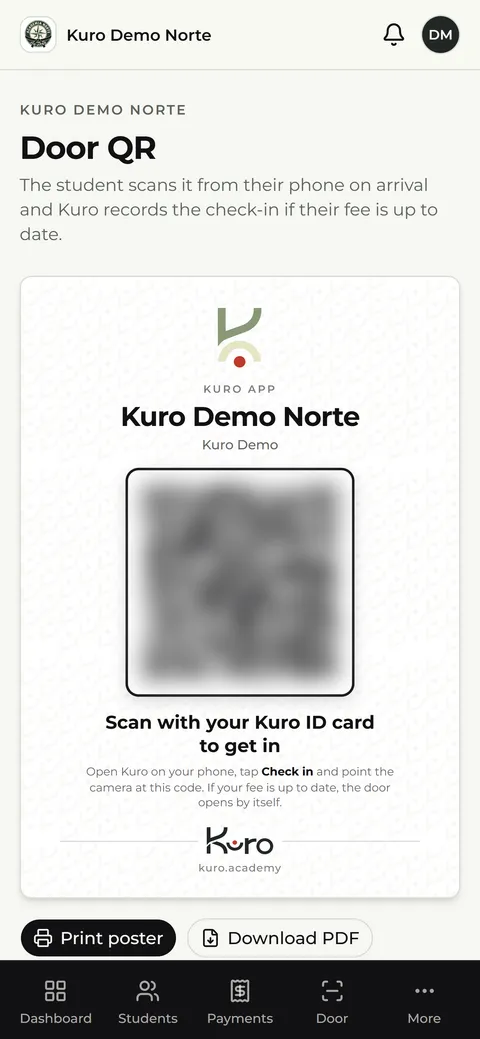
The door QR is the poster students scan when they arrive. It can be fixed, to print on A4 and stick up, or rotating, to show on a tablet: it changes every thirty seconds. It can be regenerated if it leaks. If a student doesn't have their phone, log the attendance by hand from their page or from the history, up to ninety days back. A duplicate entry is deleted with the trash can in the Historial de accesos (Access history).
With the pencil on each row of the Historial de accesos (Access history) you fix the day and time, the class and, for a guest, their name; Kuro records who edited it. If someone scanned before you approved their sign-up, when you approve it their entries rejected for «pending sign-up» in the last 7 days switch to authorized by themselves.
In the history, a visitor from another location shows their name and location («visit from …»). If the team lets in a visitor who had already scanned and was turned away, that same record becomes authorized and Kuro notes who approved it: no extra row is created.
How do I control when the QR can be used?
In Mi sede (My location) there are two options, and both start with nothing being checked. For Kuro, a class is in progress from 30 minutes before it starts until 15 minutes after it ends.
- Ingreso por QR fuera de horario (QR entry outside class hours): you choose between No controlar (Don't check), the starting option; Solo avisar (Only warn), where the entry counts but is marked «fuera de horario» (outside class hours) in the Historial de accesos, with a notice and a filter to find them; or Bloquear (Block), where the student sees there is no class of theirs in progress and the entry is rejected. That way a photo of the QR doesn't work at any hour.
- Clase al escanear el QR (Class when scanning the QR): when scanning, the student sees a dropdown, «¿A qué clase venís?» (Which class are you here for?), with the classes happening at that moment, picks one and only then is the entry recorded. It helps when the location charges per pass or has overlapping classes.
A second scan doesn't add another entry: the student sees Ya estabas anotado (You were already checked in).
Trial classes: what do I do with people who come to try?
When you register a guest you enter their name, email (optional) and the day of the class, which can be today or up to 90 days back. Each one lands in Prospectos (Prospects), the screen where you can edit their details, delete anyone who isn't continuing and tap Convertir en alumno (Convert to student): Kuro creates the sign-up and sends the invitation by email. In Métricas (Metrics), Clases de prueba (Trial classes) adds up the month's prospects, how many converted and the conversion rate.
How do I run the location's store?
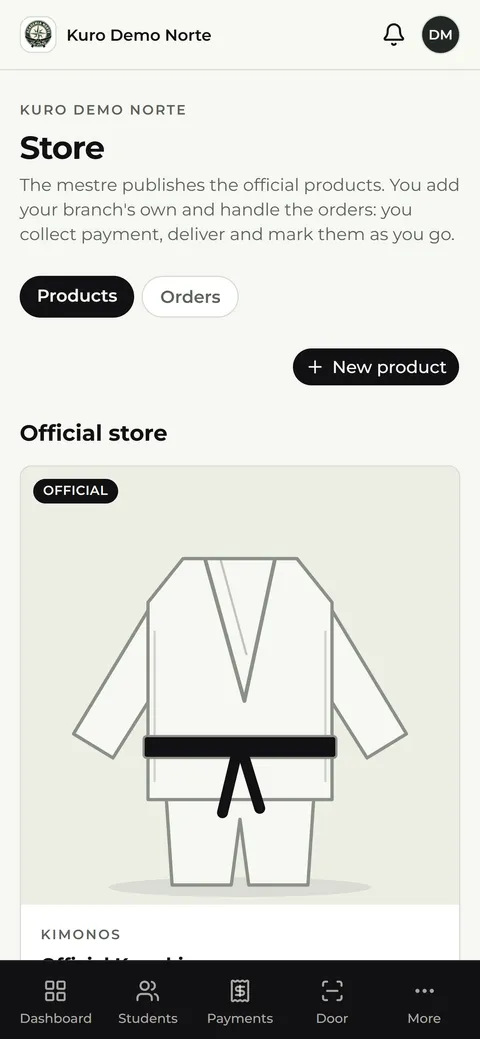
You list your location's products with a photo, description, category, price, sizes, colors and, if you want, stock. In Pedidos (Orders) you follow each one: paid, delivered or canceled. Stock goes down when an order is placed and comes back when it's canceled.
Messages and visits
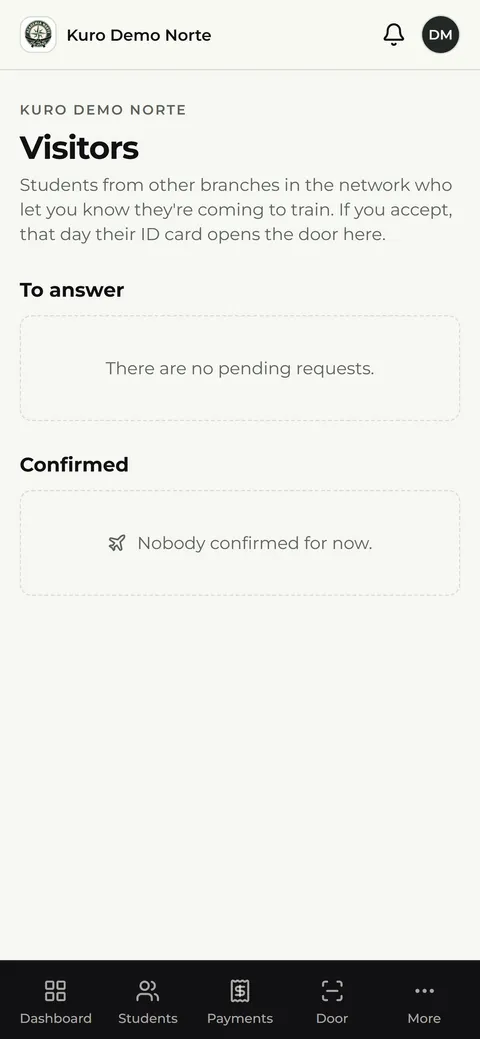
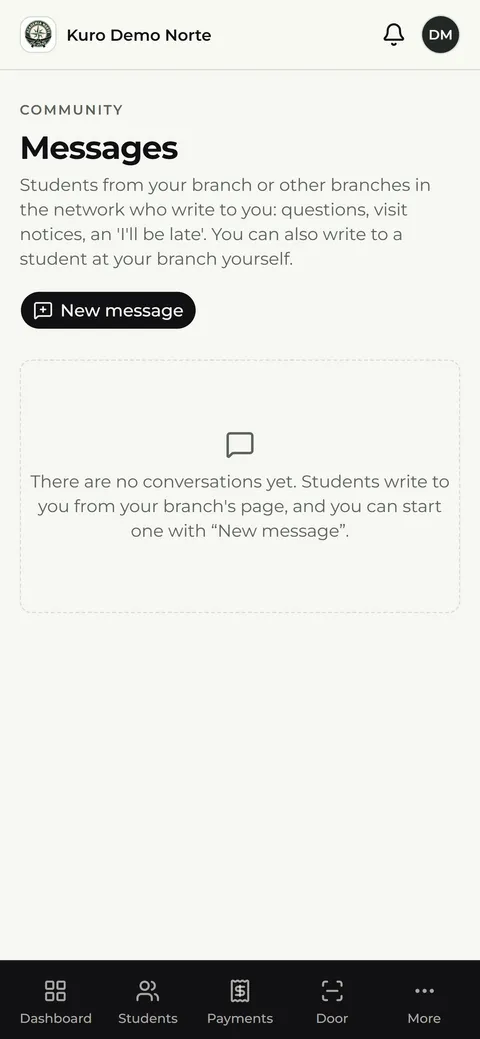
Mensajes (Messages) holds your conversations with students; with Nuevo mensaje (New message) you write to anyone at your location. In Visitas (Visits) you accept or reject students from other locations who say they're coming; if you accept, their ID card opens your door that day.
Calendar: how do I add an event and choose who sees it?
In Calendario (Calendar) you add your location's events: seminars, tournaments, belt exams and meetups, with date, time, place, link and capacity. Your students see them and get an email notice with the next 10 a.m. send.
In ¿Quién lo ve? (Who can see it?) you choose who the event is for: one or more activities and certain belts. For example, a seminar for Jiu Jitsu only, or an exam only for black belts. If you don't tick anything, all students see it. Those it isn't for don't see it, can't tap Voy (I'm going) and don't get the email. You and your instructors see every event.
The activity comes from the class name. If an activity has classes with different names (for example by shift), tick them all or write the same name on each one.
Metrics, Reports and My location
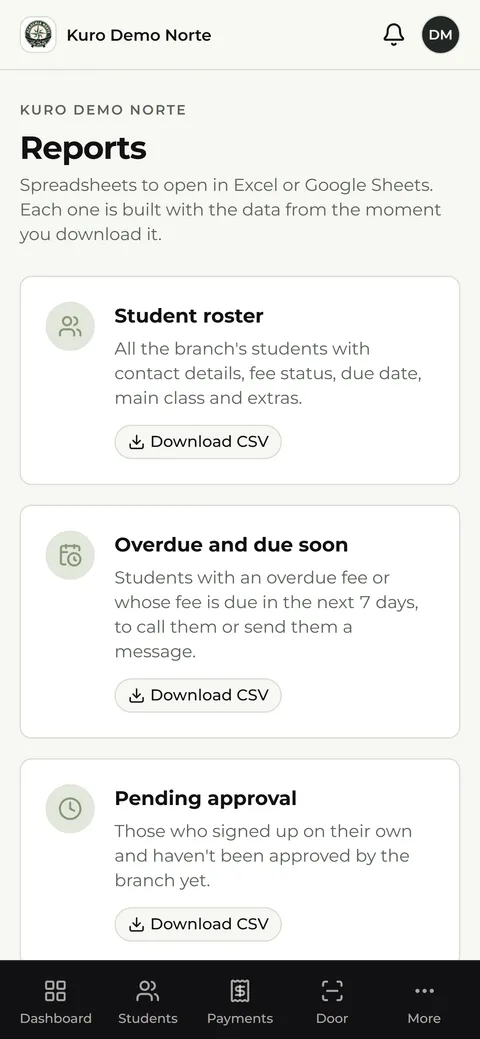
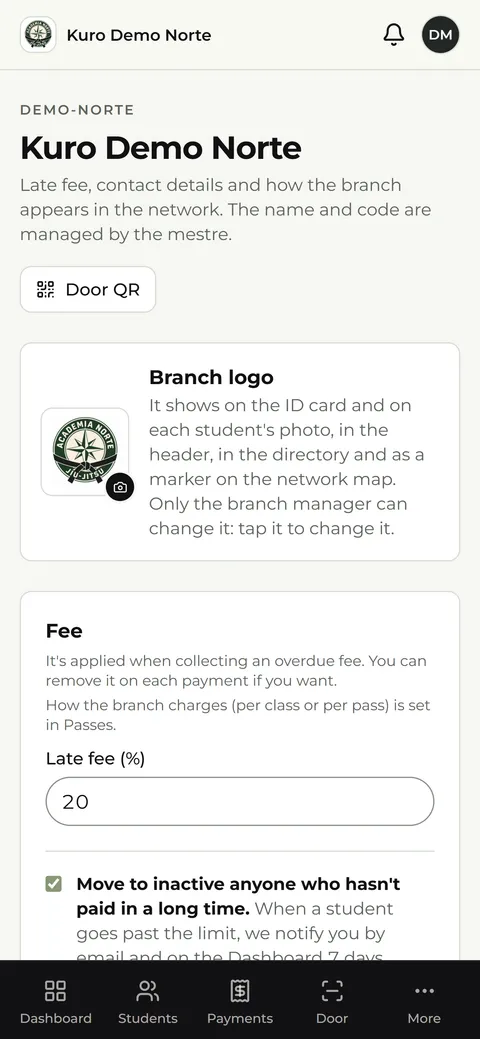
Métricas (Metrics) shows student statuses, attendance and how they change over time. Reportes (Reports) generates spreadsheets for Excel or Google Sheets: the student roster, overdue and soon-to-expire, pending, enrolled per class, the last thirty days of entries and the month's payments. In Mi sede (My location) you adjust the late fee, address, phone, schedule, social networks and whether the location is visible to the rest of the network. There you also choose the martial arts the location teaches, each with its own belts; how many attendances a student has to reach for Kuro to tell you it's time for a new promotion (the notice arrives in Avisos (Notices) and by email, and, if you want, to the instructors of their classes too); and whether instructors take attendance (Los instructores no toman asistencia, Instructors don't take attendance). The location's name and code are managed by the mestre.
5
If you are a regional coordinator
What can I see and edit in my locations?
You look after the locations in your region. The Panel (Dashboard) and Métricas (Metrics) show your locations together or one by one, with the selector at the top left; you see the general status, without payment amounts and without pending sign-ups. In Sedes (Locations) you can edit their details, position, visibility and whether they're active, and add or remove managers and instructors. You don't create locations, you don't move a location to another region and you don't touch the network's leadership. Alumnos (Students) and Clases (Classes) are read-only.
I have no region assigned
If you don't have a region yet, you'll see a notice. Ask the mestre to assign one to you from Sedes (Locations).
6
If you are a mestre
You lead the whole network. There can be more than one mestre, and a mestre can have a region assigned: in that case they see and manage only those locations, with all of a mestre's permissions.
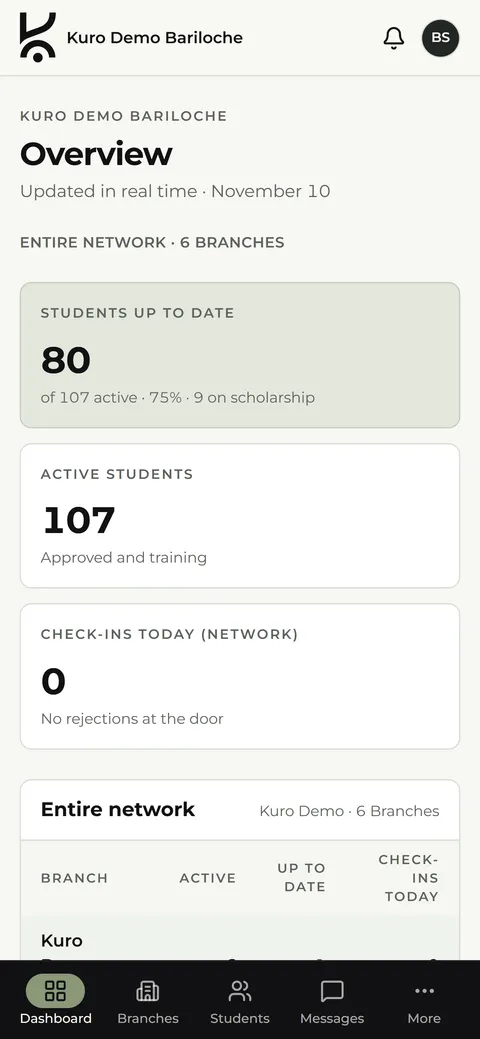
What does the network dashboard show?
All the locations together, with their active students, overdue and entries. It doesn't show students' payment amounts.
How do I manage locations, regions and the team?
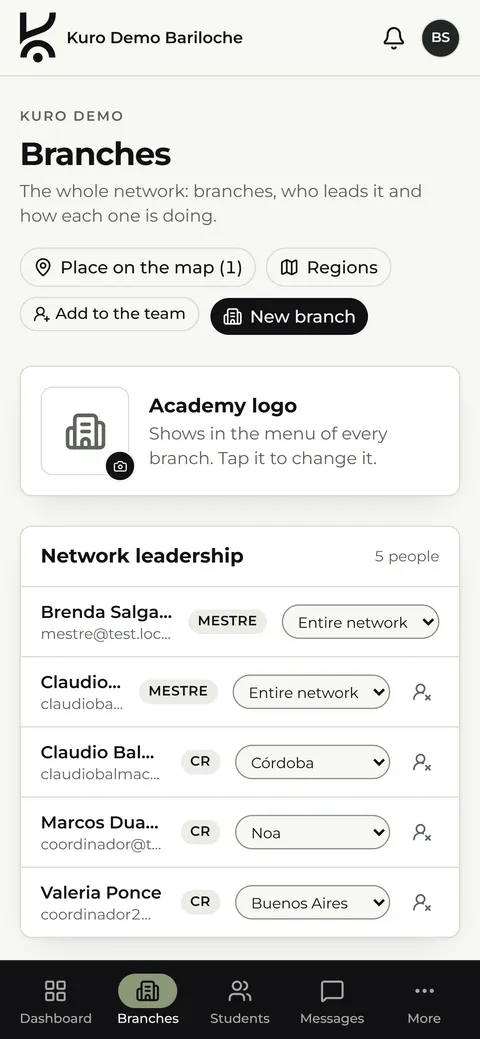
Sedes (Locations) is where the network is led: you add mestres and coordinators and assign them a region. You create and rename regions from their button, and each location is assigned to one. For each location you can edit the name, code, contact, late fee, region, whether it's visible and whether it's active, and manage its team: add managers and instructors by email, activate them, deactivate them or remove them. If a map pin lands on the city instead of the street, you adjust it by hand.
Deactivate or delete a location?
Desactivar (Deactivate), from Editar (Edit), takes it out of circulation but keeps everything and can be reversed whenever you like. Eliminar (Delete), with the trash can, deletes everything about that location: it asks you to type the name and the action is logged.
How do I request a new location or a plan change?
New locations are requested with the Nueva sede (New location) button, which sends an email to contacto@kuro.academy; the Kuro team sets them up. A location's plan change is also requested from there and Kuro approves it.
How do the black belt fees work?
It's what your black belts pay you, on top of the dues they pay as students. You choose the person, enter the amount, whether it's monthly or yearly and the first due date. With Registrar pago (Record payment) the due date moves forward one period, and anything already overdue is marked in the list.
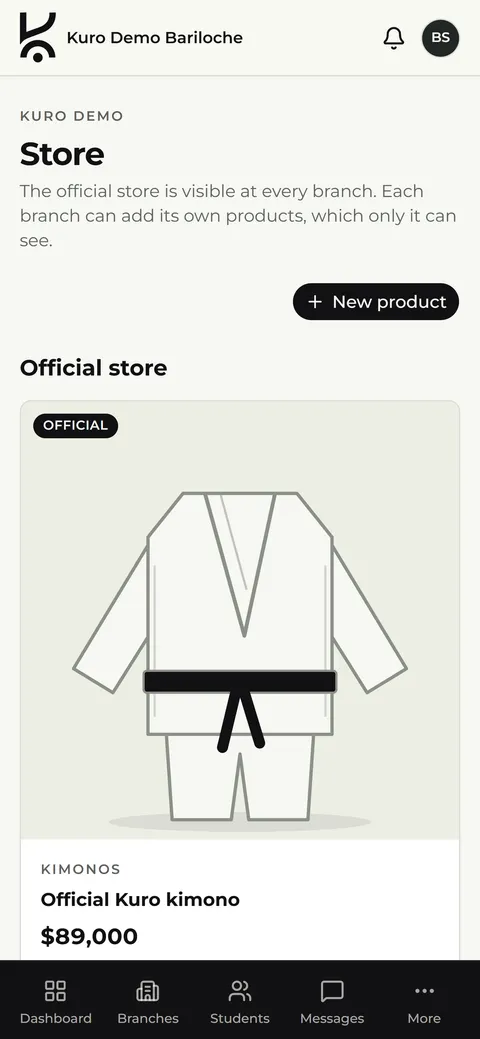
How do I publish in the official store?
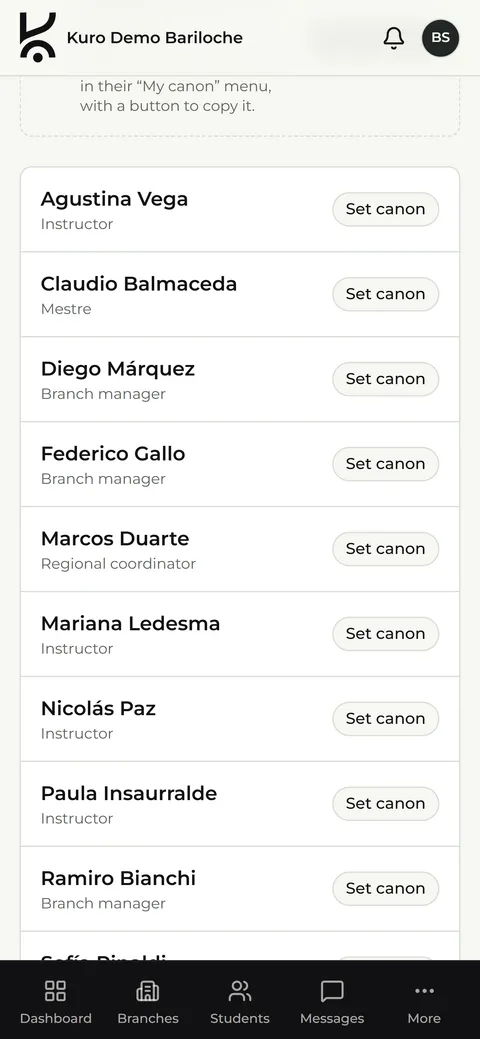
You publish the products every location sees. You don't see each location's own products or their orders.
7
Common situations
For the location manager, unless noted otherwise.
A student doesn't have their phone or couldn't scan
Look them up by name in Validar acceso (Check in) and let them in. If they already trained and it wasn't recorded, log the attendance by hand from their page.
A student can't get in through the door
Kuro shows the reason on screen. If it's overdue dues, record their payment. If they're pending approval, approve their sign-up. If they're inactive, reactivate them. If they're from another location, they need an accepted visit or a transfer. If the location blocks entries outside class hours, it also rejects anyone who scans without a class of theirs in progress.
Someone signed up and doesn't appear
Check Pendientes de aprobación (Pending approval) in Alumnos (Students). If they aren't there, they probably signed up with a different email or with another location's link. Confirm with the person which email they used.
A student is traveling to another location
From Sedes de la red (Network locations) they let that location know with Voy a entrenar acá (I'm training here). That location's manager accepts from Visitas (Visits) and that day their ID card opens the door.
A student is moving to another location
They request the transfer from the new location and that location's manager accepts it. They keep their account, belt and history; classes and dues start from zero.
A person is both a student and an instructor
If they're a student, open their page and tap Activar como instructor (Activate as instructor). If they're an instructor, go to Alumnos (Students), to Instructores de la sede (Location instructors), and tap Sumar como alumno (Add as student). If they're just signing up, choose Los dos (Both) at sign-up.
A student asked for a different pass
A message arrives and the request appears in Alumnos (Students), under Pedidos de pase (Pass requests). When you approve it, their dues become those of the new pass.
There's a duplicate student or one added by mistake
Open their page and use Eliminar (Delete): it asks for the name and warns what is lost. If they just stopped coming, use Dar de baja (Withdraw).
An extra attendance got recorded
In the Historial de accesos (Access history), the trash can on that row deletes it, and it also comes out of the month's attendance. If the day, time or class is wrong, you don't need to delete it: tap the pencil and fix it.
I recorded a payment with a wrong detail
In Pagos (Payments), tap the pencil on that payment and fix what's needed: amount, method, date, notes, period or late fee. You don't need to cancel it, and the due date is recalculated.
A student has a partial scholarship or a family discount
On their page, with Editar (Edit), fill in Cuota a mano (Custom fee) with the amount and the reason. “Becado” (Scholarship) is for someone who pays nothing at all.
A schedule or class needs to change
In Clases (Classes), edit the class. Students see it instantly in Horarios (Schedule). If the class meets on more than one day or at different times, use Agregar otro horario (Add another time slot).
The sign-up link leaked
In Alumnos (Students), under Link de registro (Sign-up link), turn it off or tap Generar un link nuevo (Generate a new link): the old one stops working.
8
If something isn't working
The confirmation or recovery email isn't arriving
First check that your email is spelled correctly, especially the domain. Then look in spam and promotions. If you had already signed up with that email, Kuro doesn't send anything new: log in with your password or recover it. If it still doesn't arrive, write to contacto@kuro.academy telling us which email you used.
I don't see an option that someone else sees
Each role sees something different. If you have more than one role, look at the top left, at Trabajar como (Work as), and pick the right one.
The screen is out of date
On a computer, reload the page with Ctrl + Shift + R (Cmd + Shift + R on Mac). On a phone, close the app and open it again.
A red notice appeared
Take a screenshot and send it along with what you were doing. That way we can find out quickly what happened.
9
What isn't there yet
These features aren't available yet:
- Phone notifications for due dates, schedule changes and network news. For now, notices are seen when you open the app.
- Online payment of dues from the app: for now the manager records the payment.
- An automatic notice when a black belt's fee is overdue.
- Messages between team members or between students: conversations are always between a student and someone on the team.
10
Your data
A location keeps information about many people: names, contact details, payments and, often, data about kids who train. Here we explain exactly what Kuro stores, who sees it and how it is protected.
What data does Kuro store?
- Your account: name, email, phone and photo, if you upload one. If you sign in with Google, Kuro receives only your name, your email and your profile photo.
- Your life at the location: which location you belong to, your classes, your belt promotions, the status of your dues and the payments the location records.
- What you choose to add: emergency contact, date of birth and the notes in your training log.
- Health data, if you want to add it: emergency service, health insurance and member number. Only you, the location manager and your location's instructors can see it, and it is used only in an emergency.
- Your entries: every time you validate your entry, the date, time, location and whether you got in or not are saved.
All of it is used only so the location can run. It is not sold, not shared with third parties and not used for advertising.
What does Kuro not store?
- Cards: Kuro doesn't process card payments. Dues are paid at the location, in cash or by bank transfer, and the location records them. Kuro doesn't charge a commission on them either.
- Images from your camera: when you scan a QR code, the image is read on your own phone. No photo or video is uploaded or saved.
- Your password: it is handled by the authentication service. Kuro doesn't see it or store it as text. If you forget it, you reset it by email.
Who sees my data?
Each person sees only what applies to their role:
- Student: only their own information.
- Instructor: teaches classes and runs the door. Doesn't see money.
- Location manager: runs their location. The only role that sees money and the only one that approves sign-ups.
- Mestre and coordinators: lead the network or their region without seeing students' payments.
Your training log is private: no one else reads it, not even your location's team.
How do we make sure each role sees only its own?
It doesn't depend on what the screen shows. The rules live in the database, in a system called row-level security: the database decides what information each account can read. Even if someone tried to request data from outside the app, the database answers only with what their role allows.
Sensitive actions, such as approving a payment or deleting someone, go through server functions that check the permission again.
How is the data stored?
- Encrypted: data travels encrypted (HTTPS) and is stored encrypted in the services where Kuro runs, which are Supabase and Vercel.
- Payment receipts: they are kept in a private space. Only the person who uploaded them and the manager of their location can see them. They open through temporary links that expire after an hour, so a copied link stops working.
- Profile photos: only photos stored in Kuro or from your Google account are accepted. That way no one can put in an image from another site to track whoever views it.
- Cookies: Kuro uses only the ones it needs to work: the one that keeps your session open and a few that remember preferences, such as light or dark theme. There are no tracking or advertising cookies.
How are sign-ups and the door protected?
- Sign-up link: each location has its own, and its manager can turn it off or generate a new one at any time. Whoever signs up stays pending until the manager approves them.
- Door QR code: it can be fixed or rotating. The rotating one changes every 30 seconds, so a photo of the poster is useless later. On top of that, the location can choose to warn about or block entries when no class is in progress, so a photo of the poster doesn't work at any hour either.
- Public forms: they have a limit on submissions per person to prevent abuse.
Can the Kuro team get into my location?
Yes, only to give it support. Every access is recorded and the support session expires after 8 hours.
Can I ask for my data to be corrected or deleted?
Yes, at any time, by writing to contacto@kuro.academy. If you leave your location, your profile is deactivated, and it can be deleted if you ask. When a location deletes someone, it is recorded who did it and when.
11
Contact
Who do I write to?
- If you are a student: for your dues, pass, classes or the door, talk to your location manager from Mensajes (Messages). Kuro doesn't handle dues, so it can't resolve a payment.
- If you are a manager, coordinator or mestre: for support, a new location or a plan change, write to contacto@kuro.academy.
- Press, partnerships and brand image: hola@kuro.academy.
We found nothing for that search. Try another word or write to contacto@kuro.academy.